
SBI account holders can now activate YONO without visiting a branch, making digital banking accessible from anywhere. This guide is for existing SBI customers who want to set up SBI YONO online and start using mobile banking features immediately.
Setting up your SBI YONO app remotely saves time and gives you instant access to banking services. We’ll walk you through the complete YONO registration process, covering the prerequisites you need before starting and the step-by-step installation guide. You’ll also learn how to link your account securely and troubleshoot any issues that might pop up during activation.
CHECK OUT : Ezipdf
Prerequisites for SBI YONO Online Activation
Required documents and information
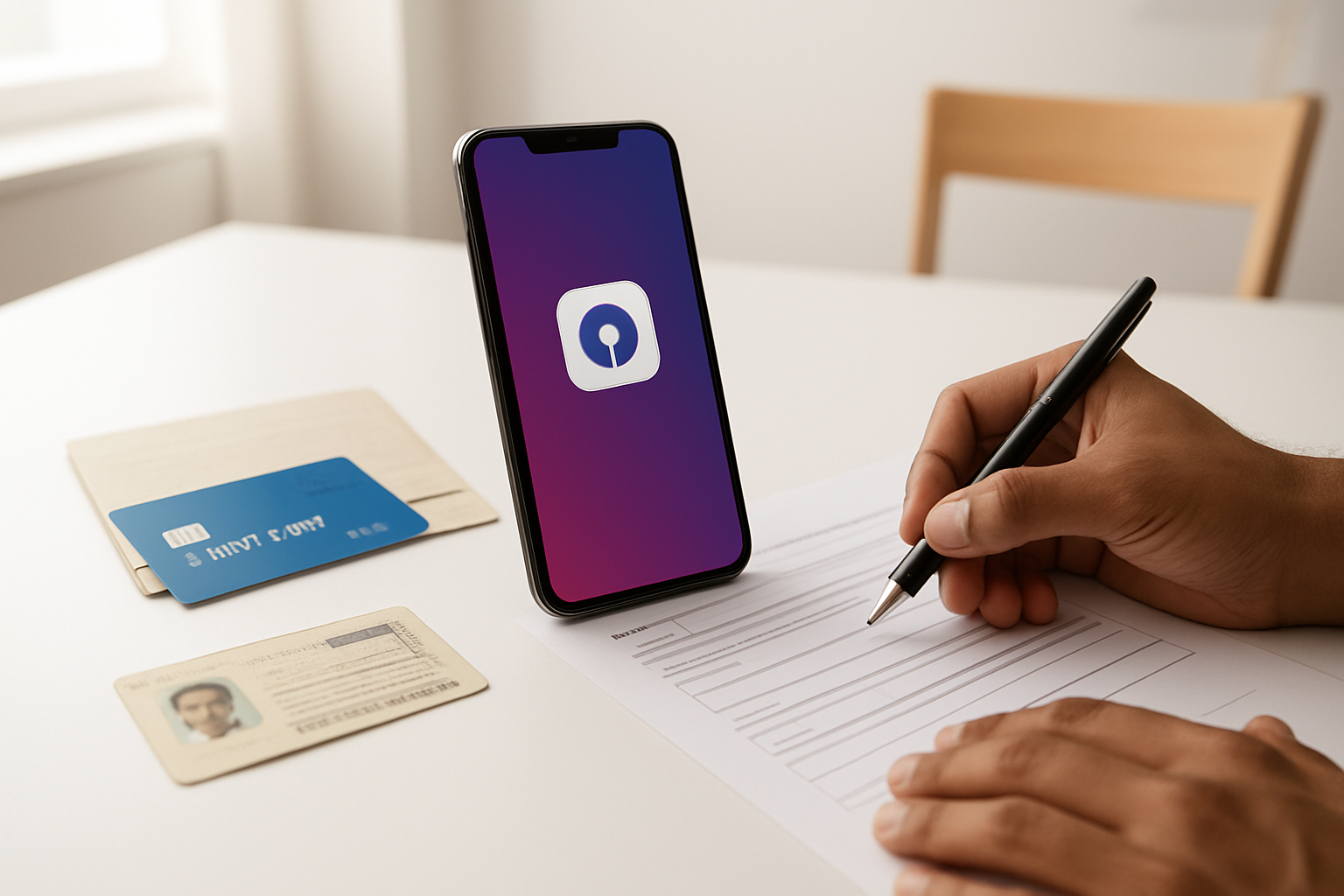
Before you start the SBI YONO activation without branch visit process, gather these essential documents and details. Your Aadhaar card number is mandatory – the app uses this for identity verification during registration. Keep your PAN card details handy too, as the system cross-checks this information with your bank account records.
You’ll also need a clear photo of yourself and copies of your identity documents stored on your smartphone. The YONO registration process requires uploading these documents directly through the app interface. Make sure your phone’s camera works properly for taking clear selfies during the verification steps.
Your registered email address with SBI plays a crucial role in receiving OTPs and activation confirmations. Double-check that this email is active and accessible from your mobile device.
Mobile number registration with SBI account
Your mobile number must be registered with your SBI account before attempting SBI YONO app setup. This number serves as the primary communication channel for all security codes and transaction alerts. If your number isn’t registered, you’ll need to update it through SBI’s customer service or by visiting a branch first.
The registered mobile should be the same one where you’re installing the YONO app. During activation, the system sends multiple OTPs to verify your identity and link your account properly. Using a different mobile number will cause authentication failures.
Call SBI’s helpline to confirm your mobile number registration status before proceeding. This simple check prevents activation delays and ensures smooth SBI mobile banking activation.
Valid debit card details
Your active SBI debit card is essential for completing the activate SBI YONO online process. The app requires your complete 16-digit card number, expiry date, and CVV code for initial verification. This information links your physical banking relationship with the digital platform.
Keep these debit card details ready:
- Full 16-digit card number
- Expiry month and year
- 3-digit CVV code from the back
- Card PIN for transaction verification
The debit card must be active and not blocked. If you’ve recently received a new card, activate it through an ATM transaction before starting the YONO setup process.
Internet banking credentials setup
Also Read : YES Bank Q2 Results: यस बैंक ने जारी किए जोरदार तिमाही नतीजें, 18% बढ़ा मुनाफा, शेयरों में होगा धमाल!
SBI internet banking activation credentials significantly streamline the YONO registration process. If you already have internet banking access, use the same username and password for faster account linking. The app automatically imports your account details and transaction history when you log in with existing credentials.
For new internet banking users, you’ll need to create login credentials during the YONO setup. Choose a strong username and password combination that meets SBI’s security requirements – typically 8-12 characters with numbers and special symbols.
Having internet banking ready also enables seamless fund transfers and bill payments once your SBI digital banking activation completes successfully.
Step-by-Step YONO App Installation Process
Download Official SBI YONO App from App Stores
Getting the authentic SBI YONO app is your first step toward SBI YONO activation without branch visit. Head to your device’s official app store – Google Play Store for Android users or Apple App Store for iPhone users. Search for “SBI YONO” and look for the app published by “State Bank of India.” The official app typically has millions of downloads and positive ratings, making it easy to spot.
Avoid downloading YONO-related apps from third-party sources or unofficial websites, as these could compromise your banking security. The genuine SBI YONO app has distinctive branding and is regularly updated by the bank. Check the app’s developer name, which should clearly state “State Bank of India,” and review recent user feedback before downloading.
The app size ranges between 50-80 MB depending on your device type. Make sure you have stable internet connectivity during the download process to prevent corrupted installations. Once downloaded, the app icon will display the familiar SBI logo with “YONO” branding.
| Platform | App Store | Search Term | Developer |
|---|---|---|---|
| Android | Google Play Store | SBI YONO | State Bank of India |
| iOS | Apple App Store | SBI YONO | State Bank of India |
Complete Mobile Verification Process
After launching the YONO app installation guide, you’ll need to verify your mobile number that’s registered with your SBI account. This step is essential for SBI mobile banking activation and ensures your account security. The app will prompt you to enter your 10-digit mobile number, which should match the number linked to your SBI savings or current account.
Once you input your mobile number, SBI’s system will send a One-Time Password (OTP) to that number within 30-60 seconds. This OTP typically contains 4-6 digits and remains valid for a limited time, usually 10 minutes. Enter this OTP in the designated field within the app to proceed.
If you don’t receive the OTP immediately, wait for 2-3 minutes before requesting a resend. Network delays can sometimes cause OTP delivery issues. The app allows up to 3 OTP requests per session, so use them wisely.
Your mobile number serves as a primary security layer for all future transactions and communications from SBI. This verification process confirms that you have access to the registered mobile number, which is necessary for the YONO registration process to continue smoothly.
Create Secure Login Credentials
Setting up robust login credentials is a critical component of SBI YONO app setup. You’ll need to create both a username and password that meet SBI’s security requirements. Your username should be unique and memorable – avoid using obvious personal information like your name or birthdate. Many users prefer combining letters and numbers for better security.
The password requirements are strict for good reason. Create a password with at least 8 characters that includes uppercase letters, lowercase letters, numbers, and special characters. Avoid common passwords like “123456” or “password.” Consider using a passphrase technique – combine unrelated words with numbers and symbols for better memorability and security.
SBI YONO also requires you to set up a 4-digit MPIN (Mobile Personal Identification Number) for quick access and transaction authorization. Choose an MPIN that’s different from commonly used numbers like your birthdate, phone number, or ATM PIN. This MPIN will be your primary authentication method for SBI digital banking activation features.
Store your credentials securely and never share them with anyone. The app may offer biometric login options like fingerprint or face recognition for added convenience while maintaining security standards essential for activate SBI YONO online functionality.
Account Linking and Verification Methods

Link existing SBI accounts automatically
Once you’ve downloaded and installed the YONO app, the first step in the SBI YONO account linking process involves connecting your existing SBI accounts. The app automatically detects accounts linked to your registered mobile number. Open the app and select “New User Registration” to begin.
Your savings accounts, current accounts, and loan accounts will appear on the screen for selection. Choose the primary account you want to link first – you can always add more accounts later. The system cross-references your mobile number with SBI’s database to pull up your account details automatically.
If multiple accounts are linked to your phone number, you’ll see a complete list. Select the accounts you want to manage through the YONO app. This automated detection saves time and reduces the chance of entering incorrect account information manually.
Verify identity using debit card details
The SBI YONO activation without branch visit requires robust identity verification using your debit card information. Have your active SBI debit card ready before starting this process.
Enter your 16-digit debit card number exactly as printed on your card. The app will prompt you to provide the card’s expiry date in MM/YY format. Next, input the CVV number from the back of your card. These details help verify that you’re the legitimate account holder.
The system may also ask for your debit card PIN for additional security. This multi-layer verification ensures your account remains protected during the YONO registration process. Make sure your debit card is active and not blocked before attempting verification.
Some users might need to verify using their ATM PIN instead of the card PIN, depending on their account settings. The app will guide you through the appropriate verification method based on your specific account configuration.
Set up transaction PIN securely
Creating a strong transaction PIN is essential for secure SBI mobile banking activation. The YONO app requires a 4-digit or 6-digit PIN that you’ll use for all financial transactions within the app.
Choose a PIN that’s not easily guessable – avoid using birth dates, phone numbers, or repetitive numbers like 1111 or 1234. The app will ask you to enter your chosen PIN twice to confirm accuracy. Store this PIN securely and never share it with anyone.
Your transaction PIN differs from your debit card PIN and login credentials. This separate PIN adds an extra security layer for fund transfers, bill payments, and other financial transactions. You can change this PIN later through the app’s security settings if needed.
The system might temporarily block your account if you enter the wrong PIN multiple times. Keep your PIN confidential and memorize it rather than writing it down where others might see it.
Complete KYC verification digitally
Digital KYC verification completes your SBI YONO app setup without requiring a branch visit. The app uses your existing KYC documents already on file with SBI, making the process smoother.
You’ll need to verify your identity using Aadhaar-based authentication or other approved methods. The app might prompt you to take a live selfie to match with your existing photographs in SBI’s records. This biometric verification confirms your identity digitally.
For enhanced services, upload clear images of your PAN card, Aadhaar card, or other identity documents if requested. The app’s camera feature helps capture high-quality images that meet verification standards.
The digital KYC process typically takes a few minutes to complete. Once verified, you’ll gain access to the full range of YONO services including fund transfers, investment options, and loan applications. Your SBI digital banking activation becomes fully operational after successful KYC completion.
Essential Security Features Setup
Enable Biometric Authentication Options
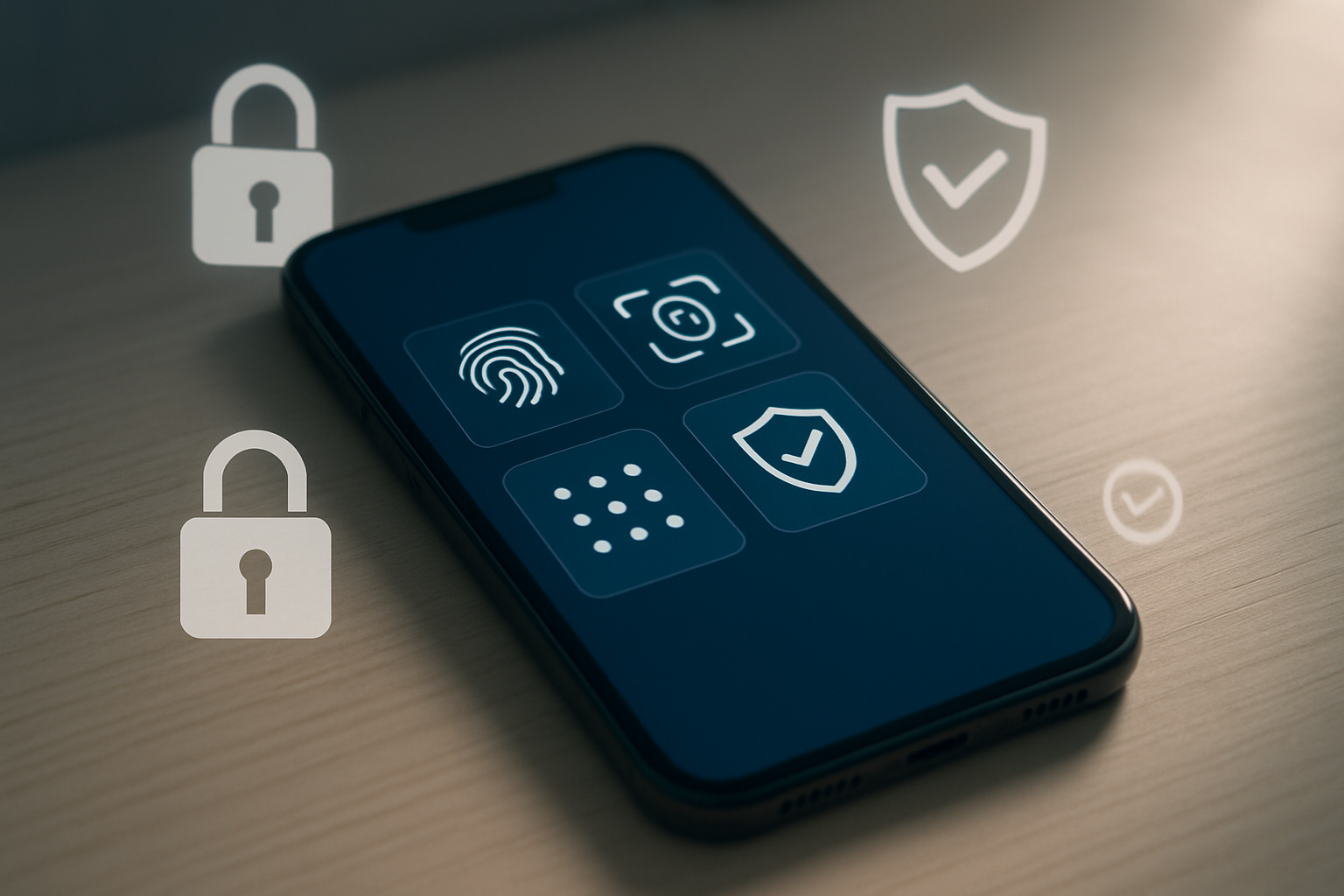
Setting up biometric authentication is your first line of defense after completing your SBI YONO activation without branch visit. The app offers multiple biometric options including fingerprint scanning and facial recognition, depending on your device capabilities.
Navigate to the “Settings” menu within your YONO app and select “Security Settings.” You’ll find biometric authentication options under “Quick Login.” Enable fingerprint authentication by following the on-screen prompts to scan your fingerprint multiple times. The system will create a secure template that replaces the need for entering your login credentials repeatedly.
For devices supporting facial recognition, activate this feature through the same security menu. The app will guide you through the face mapping process, requiring you to position your face within the designated frame while ensuring proper lighting conditions.
Key Benefits of Biometric Setup:
- Faster login process (2-3 seconds vs 30+ seconds)
- Enhanced security compared to PIN-based access
- Protection against unauthorized access
- Seamless user experience
Remember to register backup authentication methods in case your primary biometric fails. The app allows you to set up both fingerprint and face recognition simultaneously, providing flexibility based on different scenarios.
Configure Transaction Alerts and Notifications
Transaction notifications serve as real-time monitoring tools for your SBI digital banking activation. Access the “Alerts & Notifications” section from your profile menu to customize these essential security features.
Set up SMS alerts for all transaction types including fund transfers, bill payments, and account debits. Choose your preferred mobile number for receiving these instant notifications. The system sends alerts within seconds of transaction completion, allowing you to identify unauthorized activities immediately.
Email notifications provide detailed transaction summaries and monthly statements. Configure your primary email address and select notification frequency – you can choose instant alerts, daily summaries, or weekly reports based on your monitoring preferences.
Recommended Alert Configuration:
- Instant SMS for transactions above ₹500
- Email notifications for all NEFT/RTGS transfers
- Push notifications for failed transaction attempts
- Daily balance summary via SMS
- Weekly spending analysis via email
Enable push notifications through your device settings to receive in-app alerts. These notifications work even when the app is closed, ensuring you stay informed about account activities throughout the day.
Set Spending Limits and Controls
Spending controls protect your account from excessive transactions and potential fraud during your YONO app installation guide process. Access “Transaction Limits” from the main menu to customize these protective measures.
Daily transaction limits can be adjusted based on your spending patterns. The default limits typically range from ₹25,000 for fund transfers and ₹50,000 for total daily transactions. You can reduce these limits for added security or increase them if you regularly make high-value transactions.
Set up merchant category restrictions to block transactions from specific business types. This feature proves valuable for controlling online shopping, gambling, or international transactions. Create spending budgets for different categories like entertainment, shopping, or dining to maintain better financial discipline.
Transaction Control Options:
- Per-transaction limits (₹1,000 to ₹2,00,000)
- Daily cumulative limits
- Monthly spending caps
- International transaction controls
- ATM withdrawal limits
- Online payment restrictions
The app also offers time-based controls, allowing you to restrict transactions during specific hours. This feature prevents unauthorized access during your sleeping hours or when you’re typically inactive.
Activate the “Cool-off Period” feature for high-value transactions above ₹1,00,000. This creates a mandatory waiting period before such transactions are processed, giving you time to verify and cancel if necessary. The cool-off period can be customized from 30 minutes to 24 hours based on your security preferences.
Troubleshooting Common Activation Issues

Resolve mobile number mismatch errors
Mobile number verification failures are among the most common roadblocks when trying to activate SBI YONO remotely. When your registered phone number doesn’t match the one linked to your bank account, the system blocks activation automatically.
Start by checking if your current phone number matches the one registered with SBI. Call the customer care helpline at 1800 1234 or 1800 2100 to verify your registered mobile number. If there’s a mismatch, you can update it through SBI’s online portal or by visiting any SBI ATM.
For immediate resolution, try using the “Update Mobile Number” feature in the YONO app itself. Enter your account number, registered email ID, and follow the OTP verification process. The system will send a confirmation code to both your old and new numbers for security.
If you’ve recently changed your number but haven’t updated it with the bank, use a family member’s registered SBI account to help update your details through their YONO app using the “Manage Payee” option.
Fix debit card authentication problems
Debit card authentication issues often stem from incorrect card details or expired cards. Double-check that you’re entering your 16-digit card number exactly as printed, including proper spacing if the app requires it.
Your debit card must be active and not blocked for online transactions. Many users forget that new cards need to be activated at ATMs before they work for digital services. Visit any SBI ATM, perform a balance inquiry or mini statement transaction to activate your card fully.
PIN-related problems are another common cause. Make sure you’re using the correct ATM PIN, not your old one. If you’ve recently changed your PIN, wait 24 hours before attempting YONO activation as the system needs time to sync the new PIN across all platforms.
For cards nearing expiry, request a replacement card through SBI’s website or mobile banking. New cards typically arrive within 7-10 working days, and you can activate YONO immediately once the new card is active.
Handle network connectivity issues
Poor internet connection can interrupt the SBI YONO activation process at critical steps, causing frustrating timeouts and incomplete registrations. Switch between Wi-Fi and mobile data to identify which connection works better for your location.
Clear your device’s DNS cache by toggling airplane mode on and off, then restart your internet connection. This simple step resolves many connectivity-related activation problems that users face during the registration process.
If you’re using public Wi-Fi, try switching to your mobile data network instead. Banking apps often perform better on cellular networks due to better security protocols and more stable connections.
For persistent connection issues, try activating YONO during off-peak hours (early morning or late evening) when server traffic is lower. Banking systems experience heavy load during business hours, which can slow down or interrupt the activation process.
Download the latest version of the YONO app from Google Play Store or Apple App Store, as older versions might have connectivity bugs that have been fixed in recent updates.
Contact customer support alternatives
When self-service troubleshooting doesn’t work, SBI offers multiple support channels for YONO activation assistance without requiring a branch visit. The 24/7 customer care helpline (1800 1234) provides dedicated support for digital banking activation issues.
Use SBI’s WhatsApp banking service by sending “Hi” to +91 9022690226. This service allows you to chat with support agents who can guide you through the activation process step-by-step while maintaining your privacy and security.
The SBI website’s live chat feature connects you directly with technical support agents who specialize in YONO-related problems. Access this through the “Contact Us” section on the official SBI website.
Email support at customercare@sbi.co.in with your account details, registered mobile number, and specific error messages you’re encountering. Include screenshots of error screens to help agents understand your problem better.
Social media channels like Twitter (@TheOfficialSBI) and Facebook provide quick responses to activation queries. Send a private message with your concern, and avoid sharing sensitive account information in public posts.
For complex technical issues, request a callback through the SBI website’s “Request a Call” feature. A specialist will call you within 24 hours to provide personalized assistance with your YONO activation remotely.
Getting SBI YONO up and running from home is simpler than most people think. You just need your basic account details, phone number, and debit card to get started. The app walks you through everything step by step – from downloading and installing to linking your account and setting up security features like your MPIN and biometric login. These security steps might seem like extra work, but they’re what keep your money safe.
If you run into problems during setup, don’t panic. Most issues come from simple things like entering wrong details or having a poor internet connection. Double-check your information and make sure you have a stable connection before trying again. Once you’re all set up, you’ll have 24/7 access to your SBI account right from your phone. Download the YONO app today and start banking on your own schedule – no more waiting in line at the branch for basic transactions.